
User's Manual


Chapter 4 Maintenance
P-27XX Series User’s Guide
33
4.2 Auto-Provision
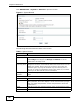
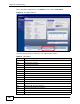
Click Maintenance > System > Auto Provision to open this screen. If you need
to provision more than one ZyXEL Device, use this screen to back up (save) the
ZyXEL Device’s current configuration to a text file on your computer. Edit the
configuration file using a text editor and put it on an auto-provisioning server.
Then configure the ZyXEL Device to download the configuration file (and firmware)
automatically from the auto-provisioning server, meaning you do not have to
upload them manually.
Figure 12 Auto Provision
The following table describes the labels in this screen.
Table 10 Auto Provision
LABEL DESCRIPTION
Backup Auto-provision File
Backup Click Backup to save the ZyXEL Device’s auto-provisioning
configuration file to your computer.
Auto Provision
Protocol Select the networking protocol (HTTP, TFTP or FTP) you want to use to
access the auto-provisioning server to download the configuration file.
Otherwise, select Disable to not request and receive auto-provisioning
files.
HTTP/TFTP/FTP
Server Address
Enter the auto-provisioning server IP address.
HTTP Server
Port
If you select to transmit the auto-provisioning configuration file using
HTTP, enter the server’s port number.
FTP Username If you select to transmit the auto-provisioning configuration file using
FTP, enter your FTP account user name for authentication.