
User's Manual


Chapter 8 Wireless LAN
P-660HW-Tx v3 Series User’s Guide
142
8.2.2 WEP Encryption
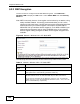
Use this screen to configure and enable WEP encryption. Click Network >
Wireless LAN to display the AP screen. Select Static WEP from the Security
Mode list.
Note: WEP is extremely insecure. Its encryption can be broken by an attacker, using
widely-available software. It is strongly recommended that you use a more
effective security mechanism. Use the strongest security mechanism that all the
wireless devices in your network support. For example, use WPA-PSK or
WPA2-PSK if all your wireless devices support it, or use WPA or WPA2 if your
wireless devices support it and you have a RADIUS server. If your wireless
devices support nothing stronger than WEP, use the highest encryption level
available.
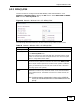
Figure 48 Network > Wireless LAN > AP: Static WEP
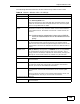
The following table describes the wireless LAN security labels in this screen.
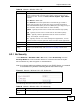
Table 31 Network > Wireless LAN > AP: Static WEP
LABEL DESCRIPTION
Security
Mode
Choose Static WEP from the drop-down list box.
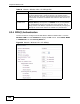
Passphrase Enter a passphrase (up to 32 printable characters) and click Generate.
The ZyXEL Device automatically generates a WEP key.
WEP Key The WEP key is used to encrypt data. Both the ZyXEL Device and the
wireless stations must use the same WEP key for data transmission.
If you want to manually set the WEP key, enter any 5 or 13 characters
(ASCII string) or 10 or 26 hexadecimal characters ("0-9", "A-F") for a 64-
bit or 128-bit WEP key respectively.