
User's Manual





Chapter 8 Wireless LAN
P-660HW-Tx v3 Series User’s Guide
151
8.4 The WPS Screen
Use this screen to configure WiFi Protected Setup (WPS) on your ZyXEL Device.
WPS allows you to quickly set up a wireless network with strong security, without
having to configure security settings manually. Set up each WPS connection
between two devices. Both devices must support WPS.
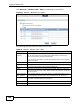
Click Network > Wireless LAN > WPS. The following screen displays.
Figure 55 Network > Wireless LAN > WPS
The following table describes the labels in this screen.
Table 38 Network > Wireless LAN > WPS
LABEL DESCRIPTION
WPS Setup
Enable WPS Select the check box to activate WPS on the ZyXEL Device.
PIN Number This shows the PIN (Personal Identification Number) of the ZyXEL
Device. Enter this PIN in the configuration utility of the device you want
to connect to using WPS.
The PIN is not necessary when you use WPS push-button method.
Generate Click this to have the ZyXEL Device create a new PIN.
WPS Status This displays Configured when the ZyXEL Device has connected to a
wireless network using WPS or Enable WPS is selected and wireless or
wireless security settings have been changed. The current wireless and
wireless security settings also appear in the screen.
This displays Unconfigured if WPS is disabled and there is no wireless
or wireless security changes on the ZyXEL Device or you click
Release_Configuration to remove the configured wireless and
wireless security settings.