
User's Manual



Chapter 21 Logs
P-660HW-Tx v3 Series User’s Guide
302
21.2 The View Log Screen
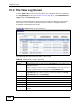
Use the View Log screen to see the logs for the categories that you selected in
the Log Settings screen (see Section 21.3 on page 303). Click Maintenance >
Logs to open the View Log screen.
Entries in red indicate alerts. The log wraps around and deletes the old entries
after it fills. Click a column heading to sort the entries. A triangle indicates
ascending or descending sort order.
Figure 126 Maintenance > Logs > View Log
The following table describes the fields in this screen.
Table 89 Maintenance > Logs > View Log
LABEL DESCRIPTION
Display The categories that you select in the Log Settings screen display in the
drop-down list box.
Select a category of logs to view; select All Logs to view logs from all of
the log categories that you selected in the Log Settings page.
Email Log Now Click this to send the log screen to the e-mail address specified in the
Log Settings page (make sure that you have first filled in the E-mail
Log Settings fields in Log Settings).
Refresh Click this to renew the log screen.
Clear Log Click this to delete all the logs.
# This field is a sequential value and is not associated with a specific entry.
Time This field displays the time the log was recorded.
Message This field states the reason for the log.
Source This field lists the source IP address and the port number of the incoming
packet.